Wednesday, December 6, 2017

HOW REMOVE BLOATWARE ON YOUR ANDROID DEVICE EASILY


If you will purchase new android device when it comes so many apps which some may need or may be completely useless. Those Apps occupy a larger storage on your device and cannot be uninstalled with Stock OS. These apps are called Bloatware.

 To remove Bloatware, you can make free space which is important Fact for any device. Moreover this app may run on background and use your battery and RAM usually. So removing the bloatware  will increase your battery life as well as make your device faster and more efficient by freeing more RAM.

Pre-installed apps by manufacturer or carrieer that are useless most of the time.It consumes system resources,Power, Storage space and RAM.Otherwise,they are running in the background without you knowing and draining up your battery.
Method to remove Bloatware on Android devices
Currently,most Android users use  Android smartphone.Do you know to how to  Bloatware on your Android Device easily? okay,don’t worry,Bloatware on android device is very easy task.We know that Every uses  faced to this android experience.

System Remover App can  delete Bloatware on your device easily. But System App supports only for the rooted android devices. So you need to root your android devices before install the System App. Android Rooting is making a permission to enter the System Application without any restrictions. We can find varies types of rooting tools in the android market easily. Some rooting methods are most complicated but one-click rooting tools are most user-friendly and handling is very simple. After your devices has rooted successfully, you can install any 3rd party apps on your android device.
Read More-
How To Root Any Android Device With KingRoot?
How To Root Any Android Device With KingoRoot?
How To Root Any Android Device With iRoot?
How To Root Any Android Device With TowelRoot?

ANYWAY,YOU SHOULD ROOT YOUR ANDROID DEVICE AND FINALLY YOU CAN INSTALL System App Remover  TO Remove Bloatware esily.

HOW TO ROOT YOUR ANDROID DEVICE

I have mentioned many one-click rooting tools as above,You can use any one to root your Android device.Furthermore,i have selected a KingRoot as example.Understand my friends,other all rooting tools include similar procedure.

Basic Requirments


Backup All on your Android Device using by Appropriate Method
Enable USB Debugging Mode.Read More-What Is the USB Debugging Mode?
Device Battery Should be charged at least more than 60%

Rooting Procedure

1.Download KingRoot(You can use Any Above Rooting Tools)
2.Enable Unkown Sources on your Android device. Genearally every Android  has Unknown source has disabled by manufacturer because device protection why anyone can't uninstall System Apps or install the 3rd Party Apps on your Android Device.So if you need to use any 3rd party app when you need enable unknown source before installation begin.
3.Now,you can install the KingRoot Apk on your Android device
4.You should conduct stable internet connection during the rooting process.
5.Then you need to Tap on Root Buuton to begin Rooting Process
6.Now,be patience and wait several minutes to complete the Android Rooting Process.
7.After sevaral minute you can get results as your Android Device are successfully rooted with KingRoot.
If your Android Device failed with KingRoot Apk when you can try to use KingRoot PC Version why KingRoot PC version is most exploit than KingRoot Apk.

How Install System Remover App on Your Android Device

1.After Rooting has finished with KingRoot Apk,you can go the play-store
2.Searload System App Remover.
4.Then you can install it on your Android Device 
5.After finished the installation process of the System App,you can launch into the System App to further operation.
Thanks,if you have any problem when you can contact us.


Tuesday, December 5, 2017

Best Android Apps For Better Health and Peaceful Mind


Why we can't think about our physical healthy and mental healthy? yes of of course we live well mechanism world so we all are worked as machine.But understand well,we also part of the nature.Our body is also living system.It also need rest mentally and physically.We all need money to conduct our live properly.It is correct.Don't worry that i know that you say as you haven't time to see your healthy.Understand my friend,How do you work well without good mental and good healthy.Anyway,you can use this modern technology to improve and maintain better healthy easily..Read More

Monday, November 27, 2017

How To Take Device Backup Easily


You can make your every backup on your android device before rooting after rooting easily.If you would like to get backup before rooting your android device when you can use this link here.
Aim of this article is explain the way of geting backup After Rooting your Android Device.You can take every backup easily by following given guide-lines as below,

How to completely backup apps and games after rooting?

After rooting with KingRoot, you can download Titanium Backup on your device from Google Play Store. Titanium Backup is an amazing tool that helps you to backup apps and games along with their data.
To backup and restore with Titanium Backup, follow following steps:
  1. Download Titanium Backup from Google Play.
  2. Install it and grant root access.
  3. Now tap on Backup/restore tab on top of it.
  4. Tap on app you want and on the following screen tap on backup.
  5. Wait some seconds and you are done.
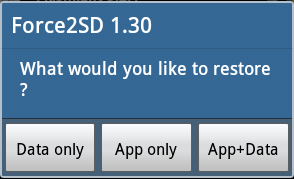
  6. You can either restore app only or data only or both app and data at once.
  7. To restore any app/data, tap on the app. You can see a restore option, tap on it.
  8. You will be then requested to choose Data Only/App Only/ App+Data. Choose any option and you are done.
kingroot

Congratulations!!!!!!.Now you have taken all backup,you can feel all android experience now.Thanks

Thursday, November 23, 2017

How To Root LG X5 Android Smartphone

 
LG X5 is a high-quality Android smartphone, which comes with 5.5-inch touchscreen display, powered by 1.3 GHz Quad-core processor along with 2 GB RAM and the device runs on Android v 6.0 (Marshmallow) operating system. If you are using this smartphone and looking for a way to root it, you are in the right place as I have given a tutorial to root LG X5 here.
 
Are you an owner of this device and hoping to find a quick way to root LG X5, then you can proceed the given guidelines to achieve your goal easily and safely? I will present you guidelines as step by step to root LG X5 here.
After successfully completing the given guidelines, then it will gain you so many benefits as bellow to your LG X5.

PREREQUISITES:

1) Take a whole backup of your personal data on your smartphone. So, take it by using an appropriate app like Titanium Backup
2)Make sure that your smartphone has at least 50-60% of battery backup in it as the rooting process is a time-consuming one.
3)Enable “Unknown Sources” by following this path: Settings -> Security -> Unknown Sources. Anyway, if you need to install 3rd party apps on your device then you should enable Unknown source.

Enable Unknown Sources In Android Smartphones And Tablets
After you have completed all these prerequisites, you should go forward to the rooting tutorial given below.

TUTORIAL TO ROOT LG X5

1) Download & install Kingroot app on your LG X5.
 
KingRoot APK Installation
2)  Launch  to the KingRoot Apk now on your device. Since your device has not root access, you will see the following message: Root Access Is Unavailable.
 
KingRoot Root Access Is Unavailable
3) Click on “Start Root” blue button to begin the rooting. During the rooting process, you will get the following message as “Rooting”. It will show you the percentage of the rooting procedure level. Be patience. After few minutes, you will gain a Rooted Android device by KingRoot Apk.
Kingroot Rooting
4) After few minutes, you will see message as Root Successfully.
Kingroot Root Successfully
Now you have successfully rooted LG X5 without computer. To confirm, open up your Apps menu (App Drawer) and look for KingUser app. If you can find KingUser there, it means that your device is successfully rooted. Furthermore, you can check root privileges on your smartphone by using the Root Checker app.


Monday, November 20, 2017

How To Root LG Nexus 5 Android Smartphone


LG Nexus 5 is an awesome high-quality Android smartphone, which comes with 5.0-inch touchscreen display, powered by 2.3 GHz Quad-core processor along with 2 GB RAM and the device runs on Android 6.0 (Marshmallow) OS. If you are owner of  this smartphone and hoping  to root it, you are in the right place as I have given a tutorial to root LG Nexus 5 here.
After successfully completing the given guidelines, then it will gain you so many benefits as bellow to your LG Nexus 5.

PREREQUISITES:

1) Take a whole backup of your personal data on your smartphone. So, take it by using an appropriate app like Titanium Backup
2)Make sure that your smartphone has at least 50-60% of battery backup in it as the rooting process is a time-consuming one.
3)Enable “Unknown Sources” by following this path: Settings -> Security -> Unknown Sources. Anyway, if you need to install 3rd party apps on your device then you should enable Unknown source.

Enable Unknown Sources In Android Smartphones And Tablets
After you have completed all these prerequisites, you should go forward to the rooting tutorial given below.

TUTORIAL TO ROOT LG Nexus 5:

1) Download & install Kingroot app on your LG Nexus 5 device.
KingRoot APK Installation
2)  Launch the KingRoot Apk now on your device. Since your device has not root access, you will see the following message: Root access is unavailable.
KingRoot Root Access Is Unavailable
3) Click on “Start Root” blue button to begin the rooting. During the rooting process, you will get the following message as “Rooting”. It will show you the percentage of the rooting procedure level. Be patience. After few minutes, you will gain a Rooted Android device by KingRoot Apk.
Kingroot Rooting
4) After few minutes, you will see the message as Root Successfully.
Kingroot Root Successfully
Now you have successfully rooted LG Nexus 5 without a computer. To confirm, open up your Apps menu (App Drawer) and look for KingUser app. If you can find KingUser there, it means that your device is successfully rooted. Furthermore, you can check root privileges on your smartphone by using the Root Checker app.

Tuesday, November 14, 2017

[ROOT] Framaroot, an one-click apk to root some devices

Hi,

Here an one-click Rooting tool to install Superuser and su binary on your Android Smartphone. Find at the compatibility list here to see if this application can be useful for you.
Feedbacks on supported devices will be greatly appreciated in order to update the compatibility list. Post your feedback here
Superuser and su binary include in application work from android 2 to 4.

!! Important !!
Success with this Rooting tool void warranty on your device.
If you need help, read the FAQ first before posting your question in the help thread


Installation
  1. Download it on your device (links are available at the end of this post)
  2. Install it with a file explorer or directly from your internet browser, if android warn you about security risk, say OK and check Unknown sources to allow install of applications outside of Play Store.

Usage

Open Framaroot and select one of the following action:

  • Install SuperSU, 
  • Unroot 
  • Execute script (for advanced users)


Possible case once application is launched
  • A popup saying "Your device seems not vulnerable to exploit included in Framaroot", in this case you can uninstall app
  • You seeing one or more exploit name, also click on one after you have selected an action and you will see one of the above messages

Possible case once exploit is selected
  • "Success  ... Superuser and su binary installed. You have to reboot your device"
  • "Failed  ... Exploit work but installation of Superuser and su binary have failed"
  • "Half-Success :-/ ... system partition is read-only, use local.prop trick. Reboot your device and use adb to see if it run as root", happen when the filesystem in use on system partition is a read only filesystem (ex: squashfs)
  • "Failed  ... Try another exploit if available"
  • Framaroot crash or freeze, in this case relaunch Framaroot a second time and select the same action and exploit

How get SuperUser for framaroot


Need Superuser? this is best superuser app for Rooted Devices.

Grant and manage Superuser rights for your phone.

Features.

> Manage superuser access for every app that needs root permission

> Allow, deny any permission request, or set it to Ask

> Superuser access notification and configuration per app

> Uninstall user applications at one click

> Per-app user override

> Grant/deny root to an app for a set amount of time

> Adjust auto>deny countdown


Read More-How to get Super User Administration on your Android Device easily